There are two types of streaming player in Naxos Music Library:
- HTML5 Player - is the latest version of Hypertext Markup Language which is the code that describes web pages. This is the default player when you started streaming.
- Flash Player - is a streaming player using content created on the Adobe Flash platform.
Let's begin streaming!
Searching Music
Once logged in, you may use the Keyword Search on the upper right portion of the screen. Just type a keyword, album/work title, composer/artist/label name etc. Click on the Search button to display the results.

Note: You may click the small red letter "i" icon beside the Search box for a quick guide for a keyword search.
Playing Music
For first time users, make sure that you are logged in to your account and have Adobe Flash Player installed. You may download or update the Adobe Flash Player using this link: https://get.adobe.com/flashplayer/
Once you are now on the album page, you are now ready to enjoy streaming. Here's how:
1. Tick the box to select a track.
2. You may click on the 'Select All' button if you wish to listen to the whole album. Click on 'Play Selections' to listen to your selected tracks or to listen to the whole album.
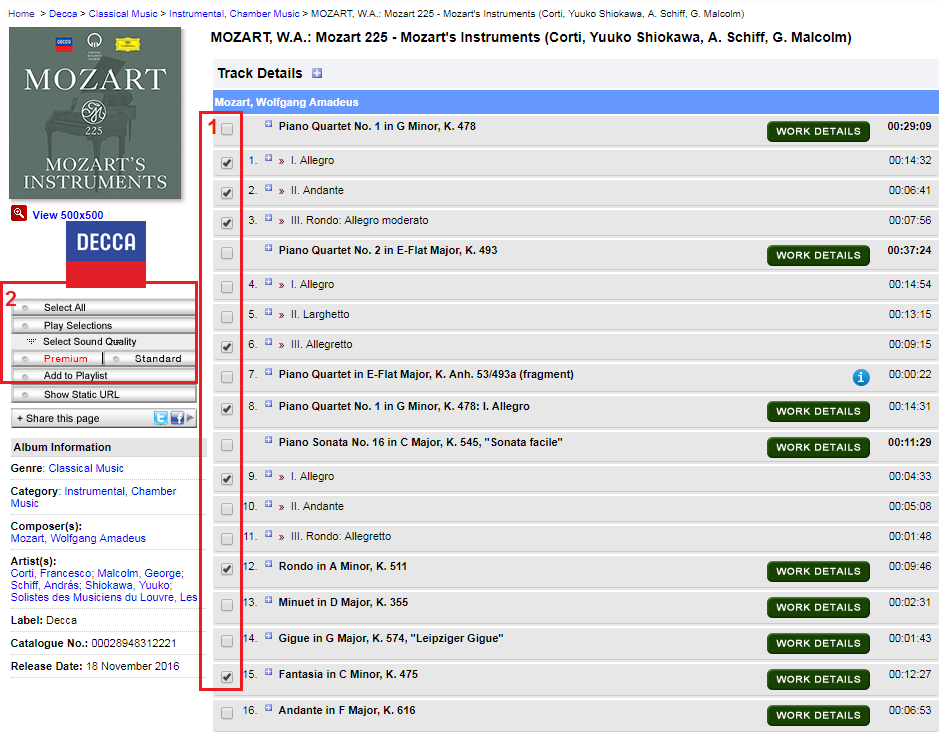
Note: If your institution has a Premium subscription, you may switch the sound quality by clicking on the 'Premium' and 'Standard'. The Premium button is not applicable on a Standard subscription.
3. A pop up window will appear displaying the HTML5 Player. If you want to use the Flash Player, click on 'Use Flash Player.'
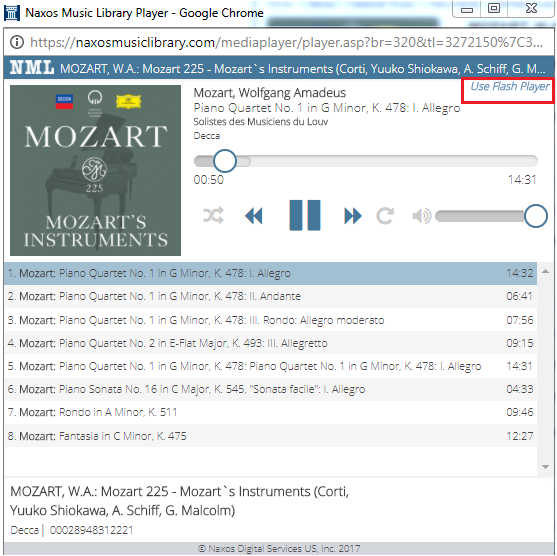
Here's how the Flash Player looks like:
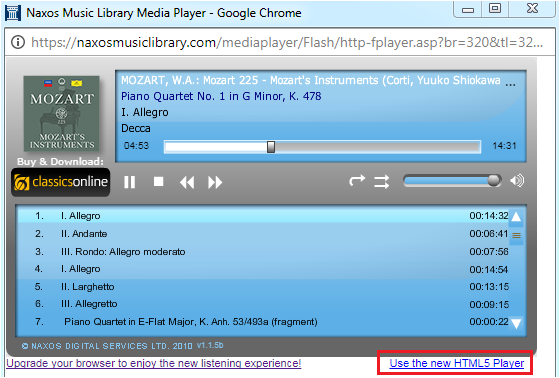
NOTE: If you are using Chrome and the flash player doesn't work, kindly follow the troubleshooting steps found in Enable Flash Player in Chrome (version 55.0.2883 to present).
You may switch back to the HTML 5 Player by clicking 'Use the new HTML 5 Player'.
About Track details, Work Details and Available Recordings
- Track Details - includes the artist who played on the piece
- Work Details- this a short history of the album/recording
- Available Recordings - this is where you'll find the other albums which also includes the track or albums you are currently listening to.
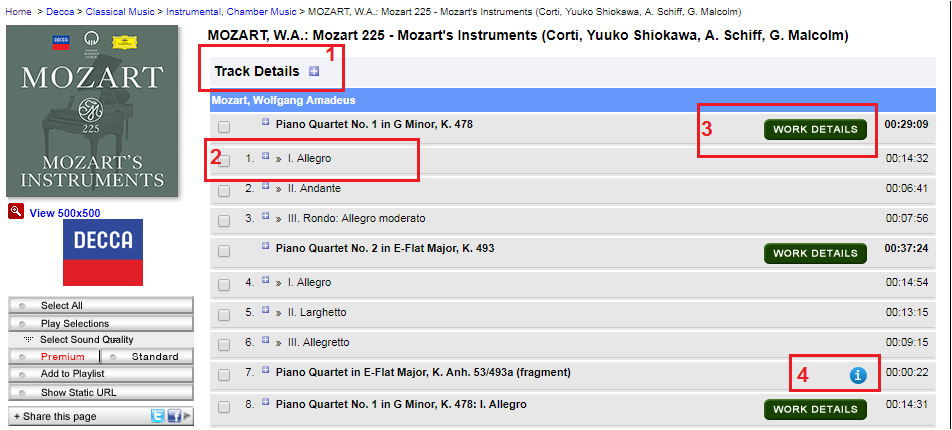
1. To view the track details of all tracks, click on the 'Blue plus sign' box.
2. To view the track details of a specific track, click the 'Blue plus sign' box beside the track title.
3. If you wish to view the Work Information, click on the the 'Work details' green button.
4. Clicking on the 'small blue letter "i" icon' will lead you to the Available recordings page.
0 Comments