There are two places from which you can make a playlist: the Playlists page and the album page.
From the Playlists page:
1. Select the folder in which you’d like to create the new playlist.
2. Click on “New Playlists.”
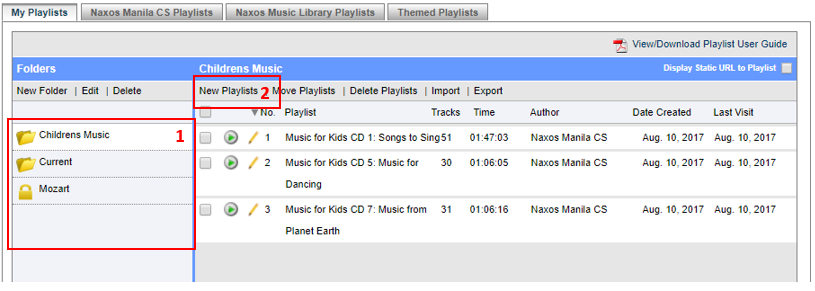
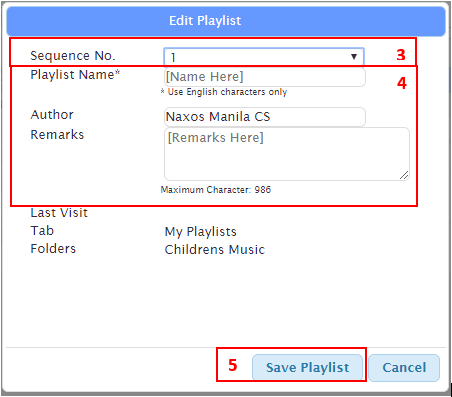
3. In the window that pops up, select where you would like the new playlist in the sequence of that folder. The default is that it will be last playlist in the folder if you do not select the sequence.
4. Name the playlist and add in the author’s name and any remarks.
5. Click “Save Playlist.”
From the Album page:
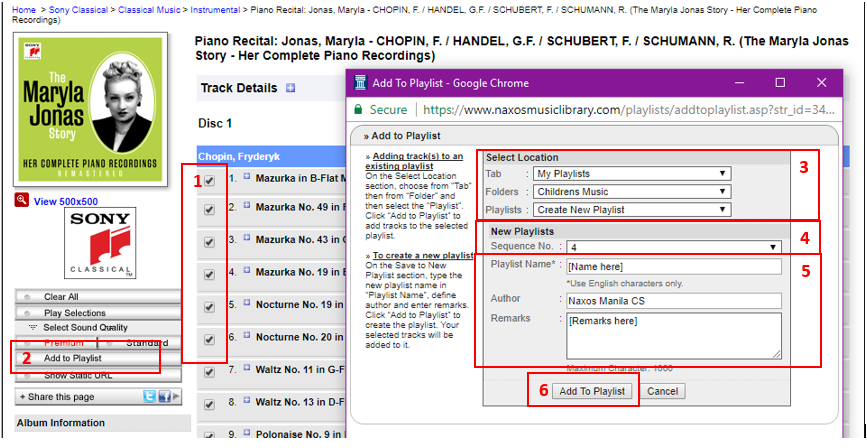
1. Once you have found the album page for the music you need, select the tracks you would like to add to a playlist by checking the boxes next to the track names or Select All.
2. Click the “Add to Playlist” button on the left side of the screen, below the album art.
3. In the window that pops up, select the appropriate tab and folder from the dropdown menus. In the “Playlists” menu, select “Create New Playlist.”
4. Select where you would like the new playlist in the sequence of that folder. It will default to being the last playlist in the folder if you do not select otherwise.
5. Name the playlist and add in the author’s name and any remarks.
6. Click “Add to Playlist.”
NOTE:
Playlists longer than 60 tracks or 4 hours may have trouble playing through correctly. However, there is no limit to the number of playlists you can create.
0 Comments